WKD HDR Switch
Toggle HDR per-monitor on Windows 11 from the system tray. Hotkeys, presets, autostart. No admin required.
About
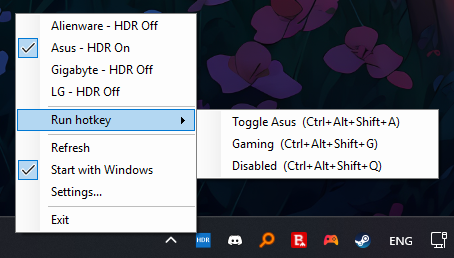
WKD HDR Switch is a small Windows 11 tray utility that adds the per-monitor HDR control Windows is missing. Click any monitor in the tray menu to flip its HDR state independently; bind global keyboard shortcuts for On, Off, or Toggle on a per-monitor basis; or save a Preset that sets every monitor to a specific On/Off state with one keypress.
Under the hood it calls Windows' DisplayConfigSetDeviceInfo with DISPLAYCONFIG_DEVICE_INFO_SET_HDR_STATE on Win11 24H2, falling back to the legacy SET_ADVANCED_COLOR_STATE on older Win11 builds. Standard-user only - no admin, no services, no UAC. Source on GitHub, GPL-3.0, free with no ads or telemetry. Part of the WKD Utilities collection.
Features
Per-monitor toggle
Click any monitor in the tray menu to flip its HDR state. The other monitors stay exactly as they were.
Hotkeys: Actions & Presets
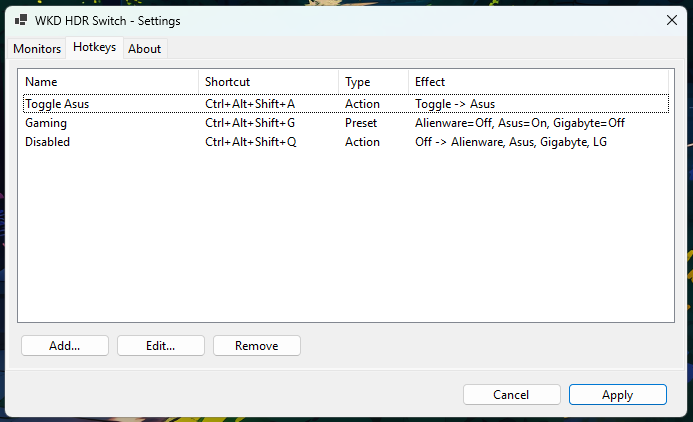
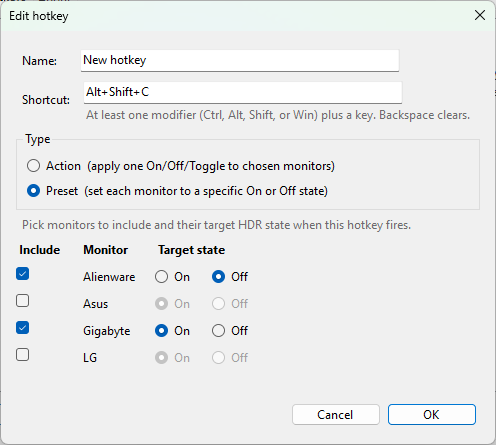
Bind shortcuts for On / Off / Toggle on chosen monitors, or build a Preset that sets each monitor to a specific state in one keypress.
Aliases that survive replug
Rename monitors (Dell U2723QE → Main); aliases are keyed on the device's hardware path, not its name.
Reorderable monitor list
Move-up / move-down in the Monitors tab. The order applies in the tray menu, hotkey target pickers, everywhere.
Modern + legacy display API
Uses Win11 24H2's SET_HDR_STATE when available, falls back to the legacy SET_ADVANCED_COLOR_STATE on older builds.
No admin, autostart, single-instance
Standard user privileges only. No services, no UAC. Registers itself in HKCU\…\Run on first launch; toggle from the tray.
Download
Framework-Dependent
~150 KBTiny zip. Requires the .NET 8 Desktop Runtime. Most Win11 systems already have it.
Download FDDPortable
~70 MBBundles its own .NET runtime. Runs on a bare Windows 11 install with nothing pre-installed.
Download PortableBoth flavours unpack and run from anywhere - no installer.
First-run notes
- Windows SmartScreen will show "Windows protected your PC" on first launch. Click More info → Run anyway. The EXE is unsigned because a $300/year code-signing cert isn't justified for a hobby utility.
- Your antivirus may flag it as a heuristic false positive - small unsigned tray app that writes an autostart entry and calls Win32 display APIs. Restore from quarantine and/or add an exclusion. Submitting it as a false positive to your AV vendor's web form is the permanent fix.
- Verify the binary is benign by reading the source: it calls
DisplayConfigSetDeviceInfoto flip HDR, writes oneHKCU\…\Runregistry value for autostart, saves settings to%LOCALAPPDATA%\WkdHdrSwitch. Read the source on GitHub.
Frequently asked questions
Does WKD HDR Switch work on Windows 10?
DISPLAYCONFIG_DEVICE_INFO_SET_HDR_STATE), which is a Windows 11 feature. The Win11 24H2 modern API is preferred; older Win11 builds use the legacy SET_ADVANCED_COLOR_STATE call. Windows 10 is not supported.Why does my antivirus or Windows SmartScreen flag the EXE?
Does HDR Switch need administrator privileges?
Program Files, or modify HKLM. It only writes to its own folder under %LOCALAPPDATA% and one autostart entry under HKCU.Can I bind a single keyboard shortcut to control only one specific monitor?
Will my monitor names and order survive a replug or driver update?
How is this different from the built-in Windows HDR toggle?
Where does HDR Switch save its settings?
%LOCALAPPDATA%\WkdHdrSwitch - settings.json holds aliases, monitor order, and hotkey bindings; wkdhdrswitch.log is a diagnostic log of every API call (rotated at 1 MB). The only registry write is the autostart entry at HKCU\Software\Microsoft\Windows\CurrentVersion\Run\WkdHdrSwitch, managed by the tray menu's Start with Windows toggle.